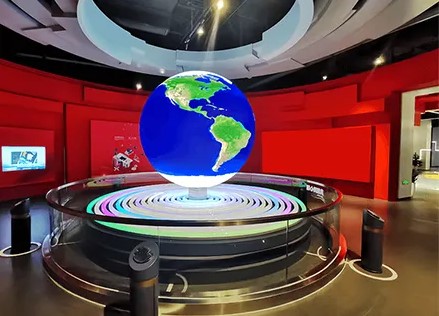
Troubleshooting Guide for Indoor Spherical LED Screen
03-Mar-2026 05:41:57
Spherical LED displays are eye-catchers, but their complex geometry—composed of hundreds of curved modules—means they require a different level of maintenance compared to standard flat screens.
Here is the professional troubleshooting guide for indoor spherical LED screens.
Troubleshooting Your Spherical LED Display: Pro-Level FAQ
Q1: Why are there visible gaps or “black seams” in the display?
The Culprit: Mechanical misalignment and curvature tolerance.
Spheres are unforgiving. Gaps usually stem from two issues: either the physical modules are not perfectly matched to the sphere’s radius (leading to “gaping”), or the installation tension has caused the modules to shift out of alignment.
The Fix: First, inspect the mechanical locking mechanisms (the clips or magnets). Vibration over time can cause these to loosen.
Check for high-low differences between adjacent modules. If the modules are physically level but the “gap” persists, it is a manufacturing tolerance issue. In that case, you must replace the modules with a “batch-matched” set to ensure the curvature is identical.
Pro-Tip: Always keep a few spare “binned” modules from the original production batch to ensure color and curvature consistency during future repairs.
Q2: Why is the brightness or color inconsistent across the sphere?
The Culprit: LED binning and power distribution.
In spherical designs, signal and power must travel through intricate daisy-chained cabling. If you see darker patches or color shifts, it’s usually because the LEDs are not receiving uniform voltage or the batches have slight color variations.
The Fix:
Hardware Check: Verify that all data cables and power lines are seated firmly. A loose contact often results in signal attenuation, which mimics a “dim” module.
Calibration: Use the dedicated control software to perform a 360° point-to-point brightness and chromaticity calibration. This maps the output of every single pixel, ensuring a uniform look regardless of its position on the sphere.
Pro-Tip: Ensure your power supply units (PSUs) are distributed evenly. If a large section of the sphere is dim, check if that specific zone has exceeded its power supply capacity.
Q3: Why is my content distorted, and why do I see flickering when filming the screen?
The Culprit: Mapping geometry and refresh rate mismatches.
Distortion happens when the “flat” video file doesn’t recognize the spherical canvas it’s being projected onto. Flickering (or Moiré patterns) is a direct result of the screen’s refresh rate failing to sync with the shutter speed of your camera.
The Fix:
For Distortion: Access your video processor/control software and re-calibrate the spherical mapping. You need to “tell” the software exactly how to wrap the 2D image onto the 3D surface so that logos and text don’t appear stretched.
For Flickering: Ensure your display is set to a high-performance refresh rate, ideally ≥3840Hz. If it still flickers, double-check your transmission cables—a weak signal or low-quality Cat6 cable can introduce data lag that causes the display to “stutter” on camera.
Pro-Tip: When using the sphere for events, provide a dedicated “Mapping Template” to your content creators. If the video assets are pre-rendered for a specific spherical coordinate, the distortion is solved at the source.