-
English


A flexible LED display may work well during installation, but problems can appear when a media player or computer sends the wrong resolution. The image may look stretched, show black borders, or fail to appear on the screen.
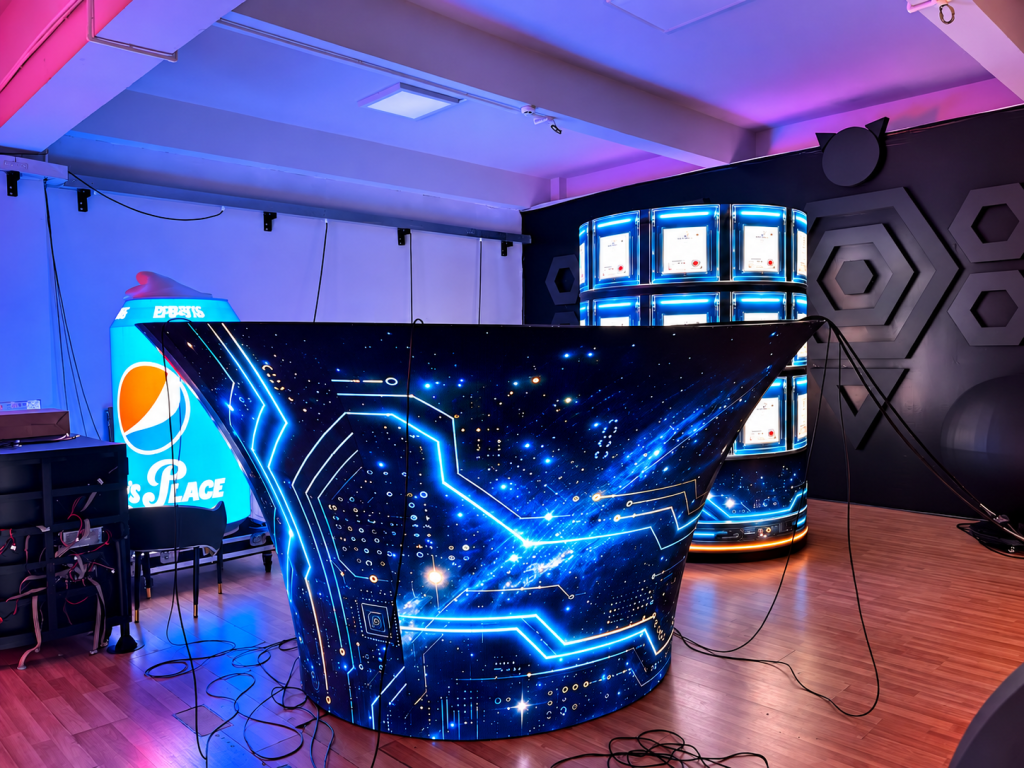
In many cases, the problem is related to EDID compatibility between the source device and the LED video processor. Understanding how EDID works can help installers identify the cause and restore the correct image without replacing hardware.
EDID stands for Extended Display Identification Data. It tells a source device which display resolutions, refresh rates, and signal formats are supported.
When a computer connects to an LED video processor through HDMI or DisplayPort, the processor provides display information to the source. The computer then selects an output format based on the information it receives.
However, flexible LED displays often use custom shapes and non-standard resolutions. If the processor reports a standard resolution that does not match the actual LED screen, the source may send an unsuitable signal.
For example, a long LED wall may have a native resolution of 3840 × 1080 pixels. If the source outputs 1920 × 1080 instead, the image may need scaling and may not fill the entire screen correctly.
Incorrect resolution settings can affect more than image size.
First, images and text may appear blurry because the video processor needs to scale the signal. Second, black borders or stretched content can reduce the visual impact of the display. In some cases, the source may not recognize the processor correctly, resulting in a black screen or a no-signal message.
These problems are especially noticeable on curved LED walls, creative-shaped displays, exhibition screens, and other installations that use custom screen dimensions.
1. Incorrect EDID settings
The processor may provide an EDID profile that does not match the required input resolution. The source then selects an unsuitable output mode.
2. Unsupported resolution or refresh rate
The source, processor, or connection may not support the selected resolution and refresh rate together. A signal that works at 30 Hz, for example, may not work at 60 Hz on the same equipment.
3. HDMI or DisplayPort connection problems
A loose cable, faulty connector, or signal transmission issue can interrupt the EDID handshake. This may cause the source to detect the wrong display or fall back to a lower resolution.
4. Incorrect display configuration
The total pixel resolution of an LED wall depends on its actual pixel layout. If the processor settings do not match the screen configuration, the image may be cropped, misplaced, or scaled incorrectly.
Start by checking the entire signal path: source device, video processor, output settings, and LED control system.
Step 1: Check the LED screen’s native resolution
Confirm the actual pixel width and height of the installed display. Do not rely only on its physical size or the resolution of a connected computer monitor.
Step 2: Check the source output
Open the computer’s display settings or media player’s output menu. Check the current resolution and refresh rate. Compare these settings with the processor’s supported input formats.
Step 3: Configure the correct EDID
If the processor supports custom EDID settings, select a compatible profile or create one that matches the required input resolution. Make sure the selected refresh rate is also supported.
Step 4: Check the signal connection
Inspect the HDMI or DisplayPort cable and confirm that it supports the required bandwidth. Reconnect the cable if necessary, then restart the source or reconnect the input to trigger a new EDID handshake.
Step 5: Adjust scaling and mapping
If the source cannot output the LED wall’s exact native resolution, use the processor’s scaling or mapping functions. For unusual screen shapes, a standard-resolution canvas with correctly positioned content can also be a practical alternative.
After changing the settings, confirm that the source detects the intended resolution and that the processor receives the correct signal.
Display test patterns containing fine text, straight lines, grids, and solid colors. Check whether the image fills the intended display area without stretching, cropping, or unwanted borders.
Next, play moving video and switch between available inputs. Confirm that the picture remains stable and that no signal interruptions occur. For a large flexible LED wall, inspect the full display rather than checking only one section.
Record the final resolution, refresh rate, and EDID profile. This makes future maintenance easier and helps technicians restore the correct settings after equipment changes.
A reliable setup depends on compatibility between the source device, video processor, signal cables, LED sending system, and receiving cards.
Before choosing a processor, check its supported input resolutions, refresh rates, connection types, and custom EDID capabilities. The processor must also support the required screen mapping and scaling functions.
For flexible LED displays, the cabinet arrangement and final screen shape should be confirmed before configuring the signal. Correct pixel mapping is just as important as selecting the right input resolution.
Consider a curved LED display installed at an exhibition booth. The screen has a custom resolution, but the connected media player outputs a standard 16:9 signal.
The video appears with black borders, and some content looks stretched. The installer checks the screen’s native resolution, adjusts the processor’s EDID settings, and selects a supported output format.
If the media player cannot output the exact custom resolution, the installer uses a standard-resolution canvas and maps the content to the correct display area. After testing text, graphics, and video playback, the screen displays the content correctly.
Q1: Why does my LED display show the wrong resolution?
The source may be receiving incorrect EDID information, or its output settings may not match the processor’s supported input formats.
Q2: Can custom EDID fix black borders?
It can help when black borders result from a resolution mismatch. However, scaling, content dimensions, and processor mapping should also be checked.
Q3: Do flexible LED displays always need custom EDID?
No. Standard resolutions may work well for some installations. Custom EDID is useful when the source needs to output a specific resolution supported by the processor.
Q4: What should I check if the screen still shows no signal?
Check the source output, supported resolution and refresh rate, cable connection, processor input selection, and EDID settings. Test with another compatible source if the problem continues.
Correct EDID settings help a flexible LED display work smoothly with its video source. By checking resolution compatibility, signal connections, and screen mapping in the right order, installers can solve many display problems without unnecessary hardware changes.
Toosen provides LED display solutions for different screen shapes and installation requirements. If your project involves a flexible or custom-shaped LED display, contact the Toosen team to discuss the display configuration and technical requirements before installation.
+86 18688923792
+86-755-23312336
4th Floor, Building B, Zhonghe Building, Taiwan Industrial Zone, 2132 Songbai Road, Shiyan Street, Bao'an District, Shenzhen.


Emall us with any questions or inquiries or use our contact data.We would be happy to answer your questions.
Toosen Professional Manufacturer of led sphere display,led screen globe,led ball display,spheric led screen,spherical led display, Led Special-shaped LED manufacturer, LED factory,Manufacturers & Suppliers,Factory & Exporters. Looking forward to your cooperation.
Copyright © 2010-2026 Toosen LED All Rights Reserved
Theme by WordPress